Overview
Wireless LANs devices communicate using the WiFi transmission technology which is defined by the IEEE in a specification known as 802.11
and is trademarked by the WiFi Alliance. There have been several generations of the 802.11 standard introduced over the last decade including: 802.11b (11 Mbps), 802.11a (54 Mbps), and 802.11g (also 54 Mbps but offering a further reach than 802.11a). 802.11g is currently the most popular, but soon will be replaced by 802.11n which is currently in the draft stage and will offer speeds up to 540 Mbps.
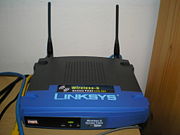
Wireless devices such as wireless network cards and wireless hubs usually support two wireless modes: AdHoc and Infrastructure. If you simply want two wireless devices to communicate with each other, then both devices should be set to AdHoc mode. If you would like to have multiple wireless devices to be able to access your home or company LAN through a wireless access point (WAP) a.k.a. Access Point (AP), then all of the wireless devices, including the device being used as the access point, should be set to Infrastructure mode. Many businesses like
coffee shops, airports, even city malls offer access to their local area networks and the Internet to the public using WAPs. The term used to refer to these publicly
accessible WAPs is a wireless "hot spot." In some cases users are charged a fee for access to the network, in other cases they are not, it is typically up to the business providing the service the make that decision.
Wireless Access Points (WAPs) and Service Set Identifier (SSIDs)
When in Infrastructure mode (the default mode),
WAPs can be used as access points for other wireless devices to connect to
wired LANs. WAPs broadcast SSIDs which are 32 octet (byte) IDs that enable other wireless devices to "see" and thereby establish a connection with the access point
which has a wired connection to a LAN switch port. For security reasons some network administrators will disable the broadcasting of an SSID by their WAP devices to prevent unwanted users from being able to detect the access points and attempt to hack into them. A hacker technique known as "war games driving" is sometimes used by unscrupulous people who cruise industrial parks and residential neighborhoods looking for WAPs that they can access and use for devious purposes without detection of where the activity is
truly originating from. However, turning off the broadcasting of a WAP's SSID does not prevent the hacker's ability to gain access to the WAP. Anytime a legitimate device connects to the WAP the SSID is transmitted clear text and a hacker can passively "sniff" the wireless network signal and detect the exchange of the SSID between the two devices.
WAP Security
The best way to prevent access to a WAP by unwanted users is to use authentication protocols like RADIUS. Although considered an expensive solution, authentication techniques are commonly used by WiFi hot spots. A simpler more cost effective means of protecting access to a WAP is to secure WAP transmissions. WAP transmissions can be secured by using the less stringent Wireless Encryption Protocol (WEP) which is considered to be weak for most security purposes. Newer second and third generation protocols known as WiFi Protected Access (WPA) versions 1 and 2 are considered very secure when used with strong password protection and are built-in to most of the newer WAPs.
Ad-Hoc Mode
When WAPs are configured for Ad-Hoc mode they can
communicate directly with each other and other wireless devices, but cannot
bridge to wired LANs. Ad-Hoc mode allows you to build an all-wireless LAN,
but performance suffers as the numbers of devices increases, and large
ad-hoc networks can quickly become difficult to manage.
The Meaniing of "LQ"
What does this mean: "Network unstable change to LQ for a smoother watching experience"?
This message means that your internet connection is currently too slow or fluctuating to stream your video in high quality without buffering. To prevent the video from freezing or lagging, the app is suggesting that you switch to Low Quality (LQ) video playback.
| Term | What it Means | Impact on Your Viewing |
|---|
| Network Unstable | Your internet signal (Wi-Fi or cellular data) is weak, dropped slightly, or experiencing congestion. | Causes the video to freeze, stutter, or buffer. |
| LQ (Low Quality) | A lower video resolution (like 360p or 480p) that requires much less internet data to load. | The video will look less sharp or slightly blurry, but it will load faster. |
|
| Smoother Watching | Playing the video continuously without annoying pauses or loading wheels. | |
How to Fix It
You want to get back to watching in High Quality (HQ/HD), you can try a few quick troubleshooting steps:
- Check your connection: Toggle your device's Wi-Fi off and back on, or switch to cellular data if it is stronger.
- Move closer to your router: Physical obstructions or distance can weaken your Wi-Fi signal.
- Close background apps: Other applications downloading content or streaming in the background can hog your internet bandwidth.
- Restart your router: If your network remains unstable across all your devices, a quick router reboot often resolves the issue.